
How to Add Regional Pricing to Your WordPress Site
Losing sales from international visitors because your prices don't match local purchasing power? Here's how to add Purchasing Power Parity (PPP) discounts and location-based pricing to your WordPress site in 5 minutes.
What is Purchasing Power Parity (PPP)?
PPP is an economic measure that compares what currencies can actually buy in their local economies. In pricing terms, a $99 product may be affordable in the US but represent 15% of a monthly salary in India or Brazil. WordPress PPP discounts adjust the price international visitors see so your pricing reflects real local purchasing power, not just currency exchange rates.
New: Evendeals WordPress Plugin
Skip the manual script installation. Download our free WordPress plugin for one-click setup and shortcode support.
Get the PluginFor the general guide that works on any website, see Country-Based Pricing: The Ultimate Guide. Why this works: Why Your Online Business Needs Parity Pricing.
Why International Visitors Aren't Buying
Your $99 service package might be reasonable for visitors in the US, but in countries like India, Brazil, or the Philippines, that same price can represent 10-15% of someone's monthly income. You're not losing sales because your offer isn't valuable. You're losing them because of purchasing power parity (PPP) differences between countries.
The Solution: WordPress PPP Discounts & Regional Pricing Banners
Instead of maintaining different price lists or cloning pages for each region, you can show smart discount banners based on where your visitors are located. When someone from Brazil visits a sales page, they see a special PPP discount. Someone from the US sees your regular price.
This approach is called purchasing power parity (PPP) pricing, and WordPress site owners using this regional pricing strategy often see 20-30% increases in international revenue from the exact same traffic.
How to Set It Up on WordPress (5 minutes)
What you need:
- Your WordPress admin access
- A free account at Evendeals.com
- 5 minutes
Step 1: Get Your Page URL from WordPress
- Log in to your WordPress admin dashboard.
- Go to Pages in the left sidebar.
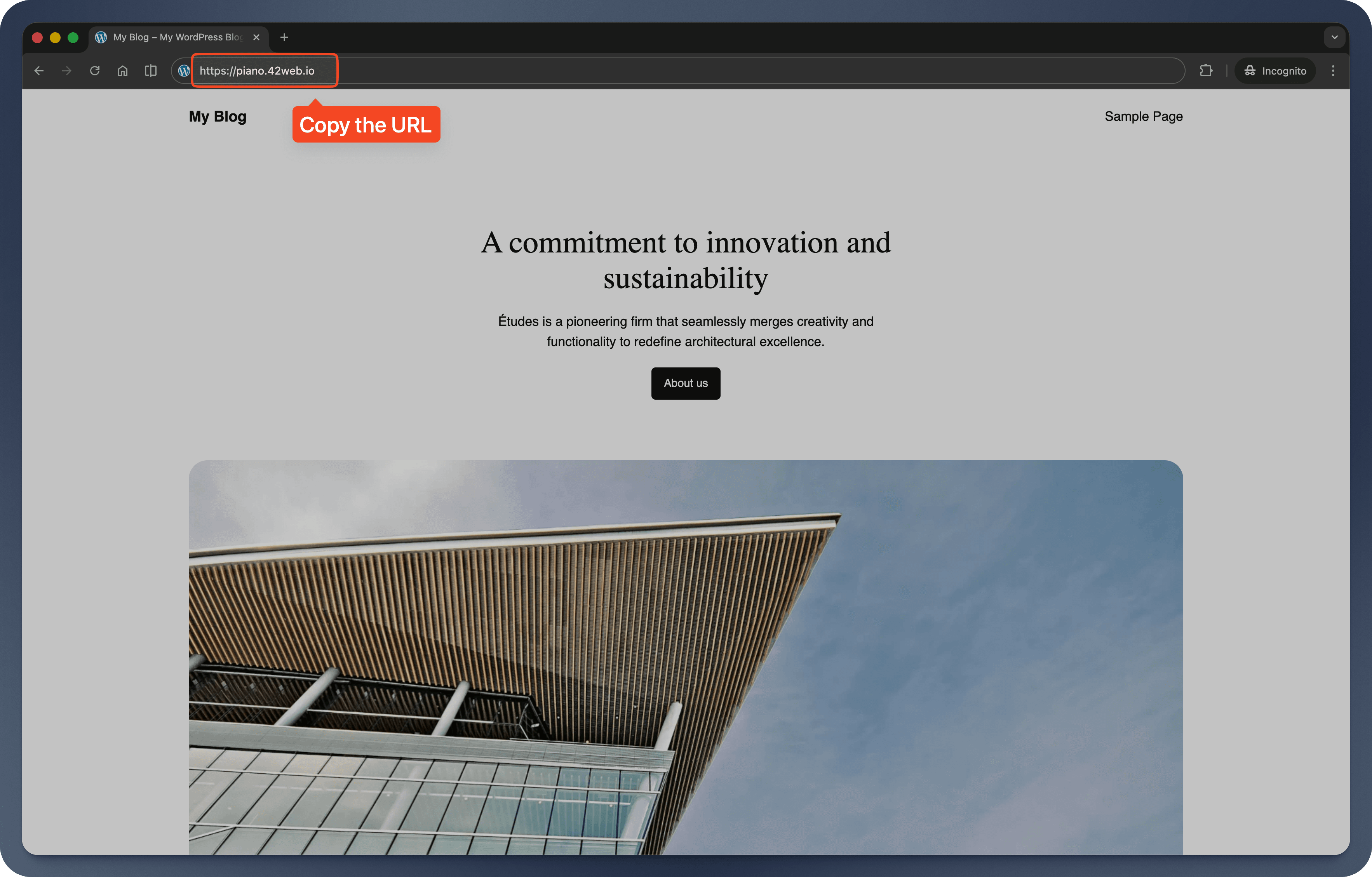
- Hover over the page where you want to show the banner and click View to open it in a new tab.
- Copy the URL from your browser's address bar (for example,
https://yoursite.com/pricing).
Step 2: Set Up Evendeals
- Sign up at evendeals.com (free account available).
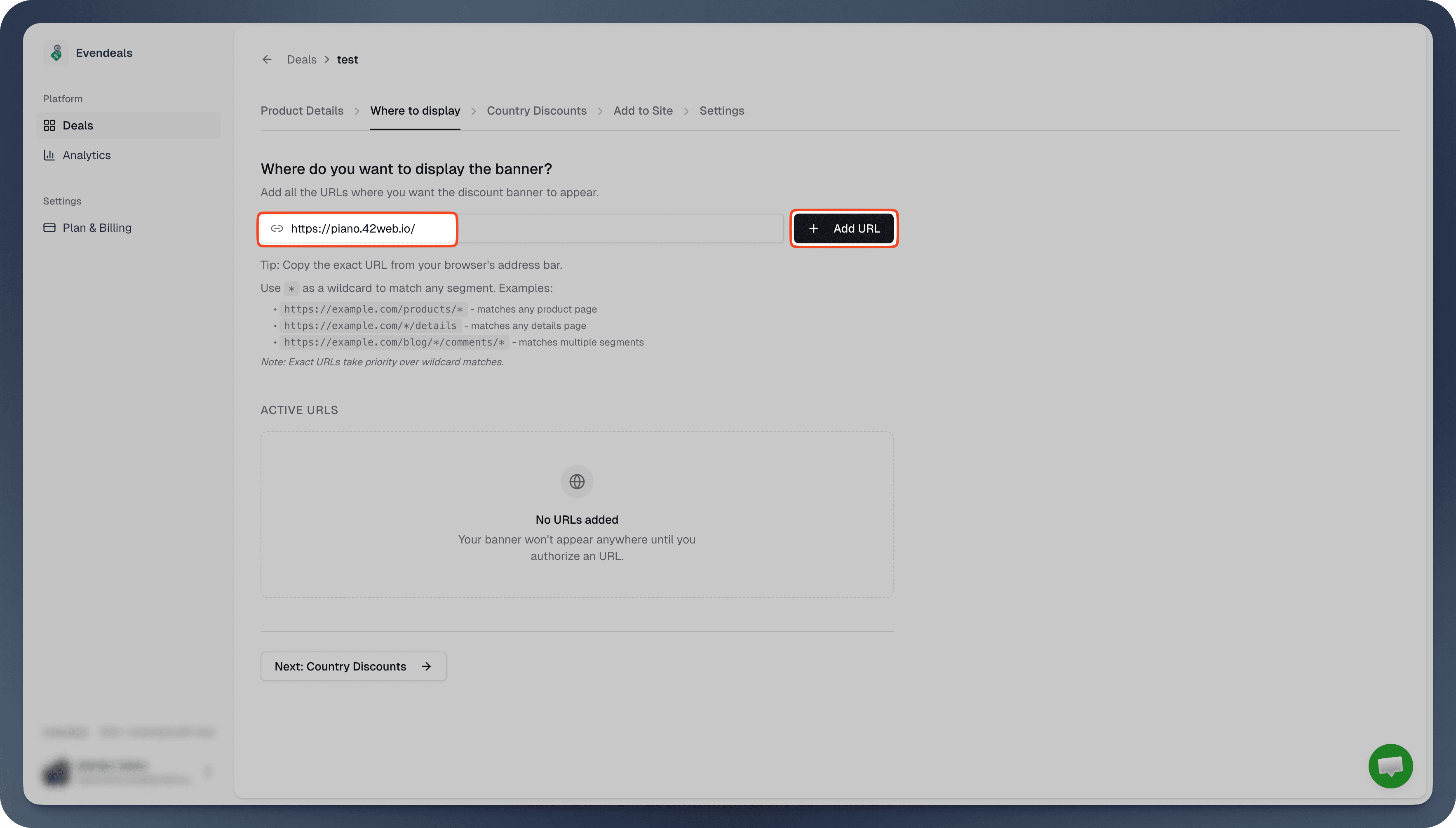
- Create a new deal and go to the Where to display tab.
- Paste your WordPress page URL into the URL field.
- Click Add URL.
Step 3: Create Coupons in Your Checkout System
Evendeals works with any WordPress checkout or membership plugin that supports coupon codes. It drops in alongside your existing stack, you do not need a special integration.
Using WooCommerce? You can skip manual coupon creation entirely. Evendeals has a native WooCommerce integration that auto-creates and syncs coupon codes for each country group directly in your store.
Popular setups that work out of the box include:
- E-commerce: WooCommerce (native integration available), Easy Digital Downloads, WP Simple Pay, MemberPress, ThriveCart, WPForms, etc.
- Course / LMS: LearnDash, TutorLMS, LifterLMS, LearnPress, Sensei LMS, etc.
- Membership: MemberPress, Restrict Content Pro, Paid Memberships Pro, WishList Member, etc.
- Open your checkout or e-commerce plugin (for example, WooCommerce) in your WordPress dashboard.
- Create a few reusable coupon codes for different regions, such as:
15OFF, 15% discount30OFF, 30% discount50OFF, 50% discount
- Make sure the coupons apply to the products or services you promote on the page where the banner will appear.
Step 4: Configure Country Discounts in Evendeals
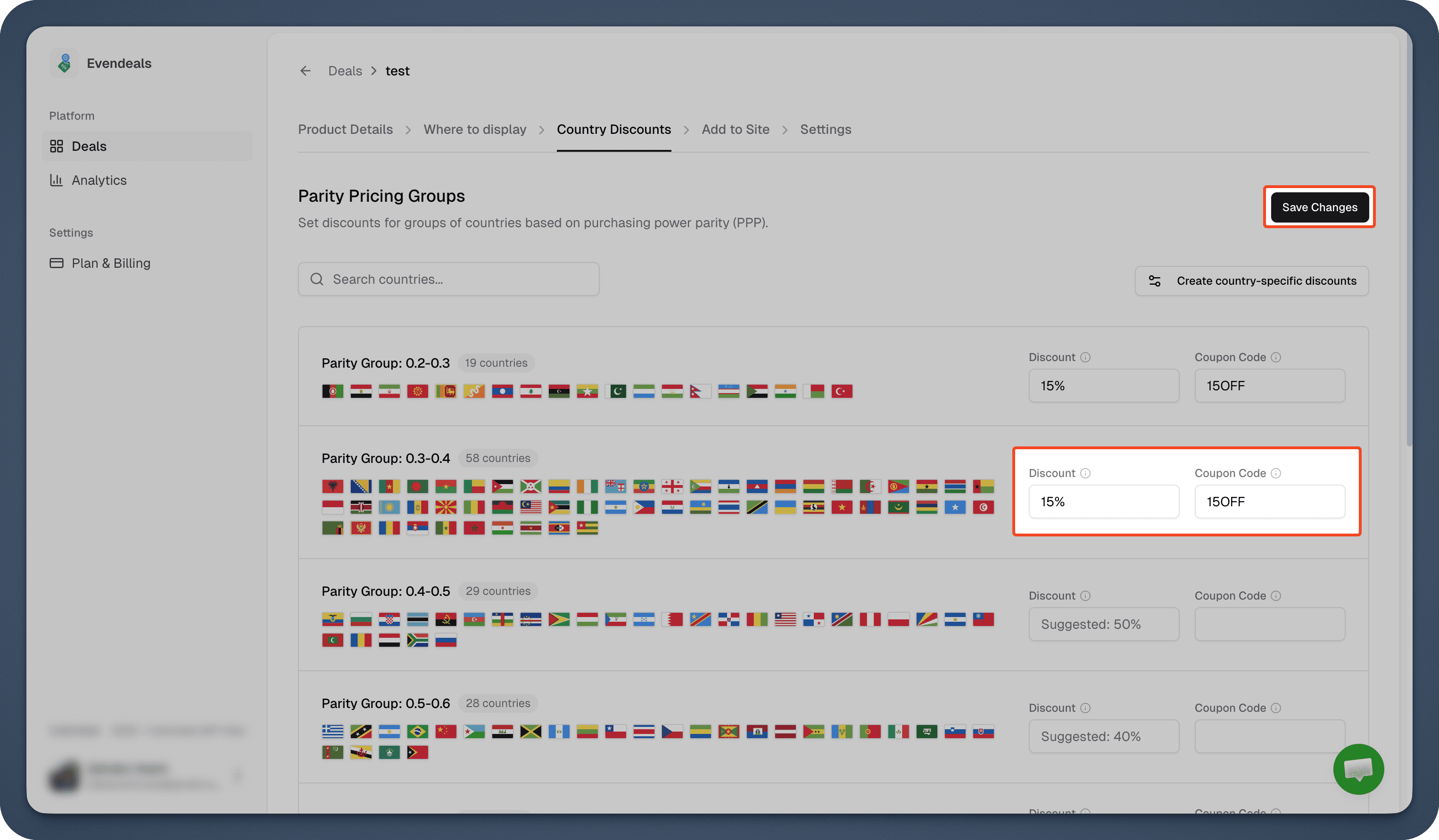
- Go to the Country Discounts tab in Evendeals.
- For each country group, choose a discount percentage and enter the coupon code that should be shown to visitors in that group.
- Start with a simple setup, such as higher discounts for lower-income regions and smaller discounts for mid-income regions.
- Click Save Changes.
Important: Coupon codes in Evendeals must match exactly what you created in your checkout system.
Not sure where to start with discount amounts? This table covers common PPP tiers as a starting point:
| Income tier | Example countries | Suggested PPP discount |
|---|---|---|
| High income | US, UK, Germany, Australia, Canada | 0% (standard price) |
| Upper-middle income | Brazil, Mexico, Turkey, South Africa, Malaysia | 15-25% |
| Lower-middle income | India, Philippines, Vietnam, Nigeria, Indonesia | 30-50% |
You can adjust these in Evendeals at any time. Most site owners start conservative (15-20%) and increase discounts for regions that still are not converting.
Step 5: Customize Your Banner
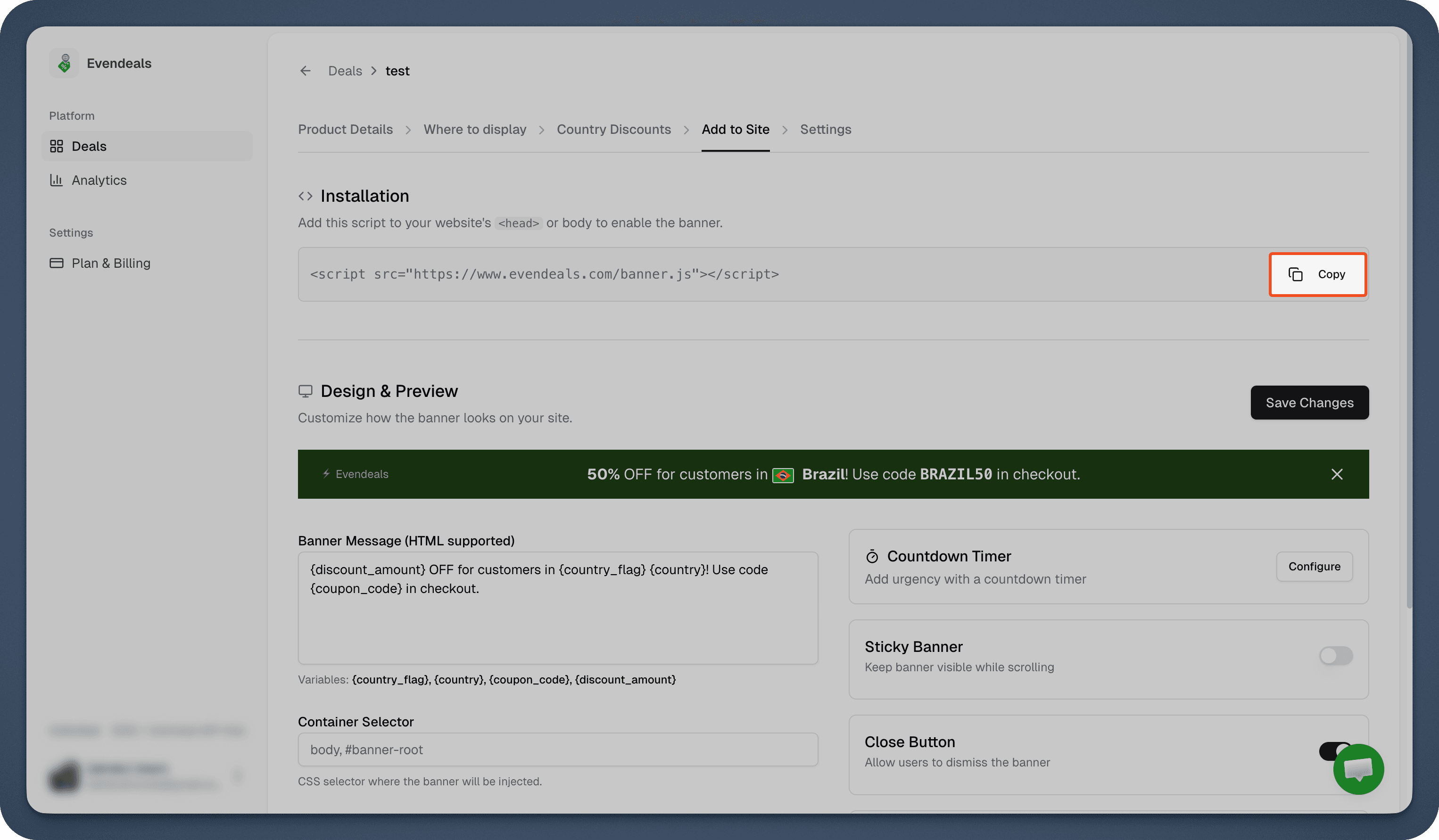
- Open the Add to Site tab in Evendeals.
- Customize the banner colors to match your WordPress theme so it looks native on your site.
- Edit the banner message so it speaks directly to your visitors (for example: “Special pricing for visitors in India”).
- Preview how the banner will look on desktop and mobile.
- Copy the installation script.
Step 6: Install Evendeals on WordPress
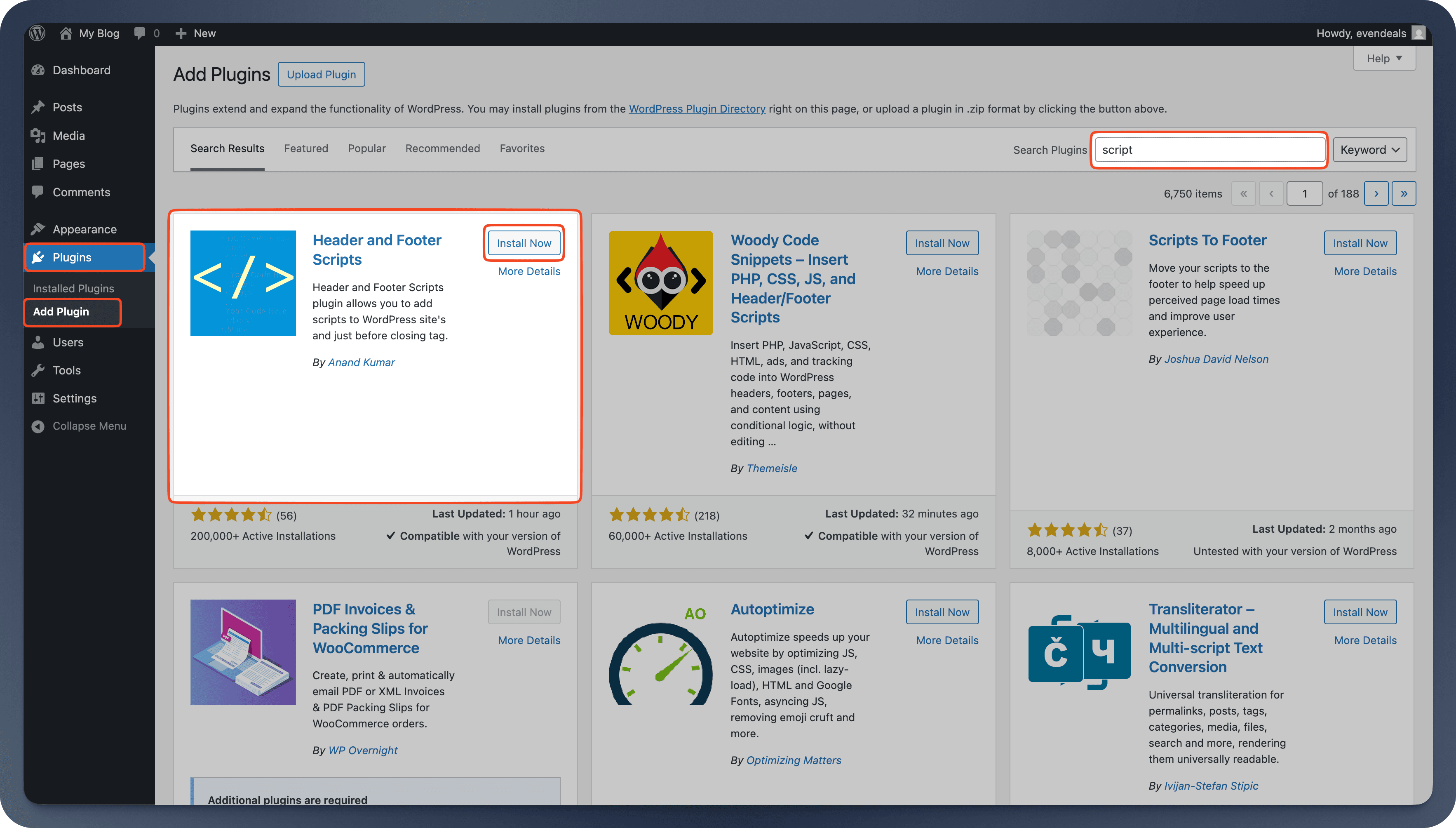
There are many ways to install the Evendeals script on WordPress. You can use your theme's custom code area or a script manager plugin. For this example we will use the Header Footer and Scripts plugin.
- Return to your WordPress admin dashboard.
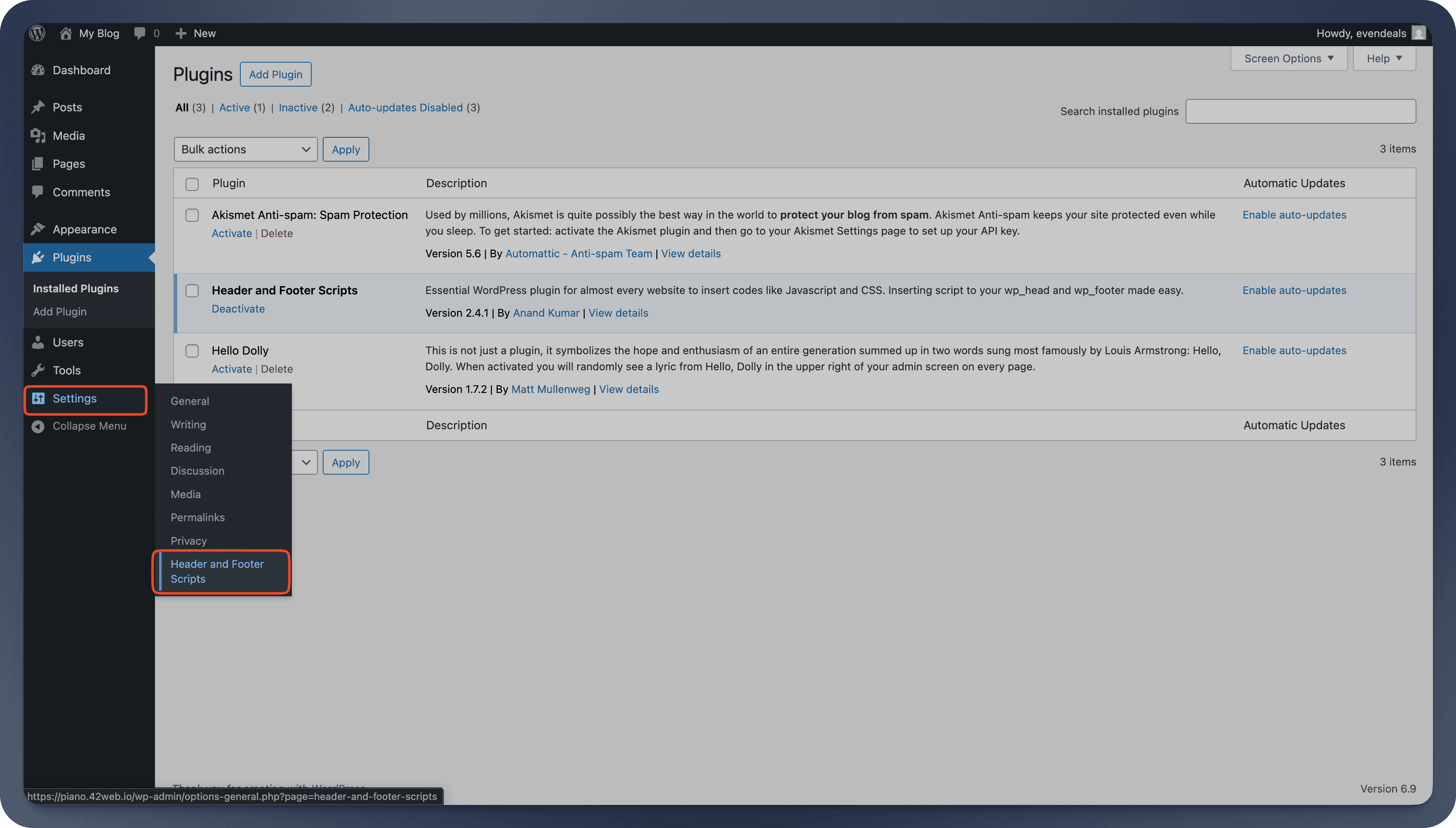
- Install and activate the Header Footer and Scripts plugin.
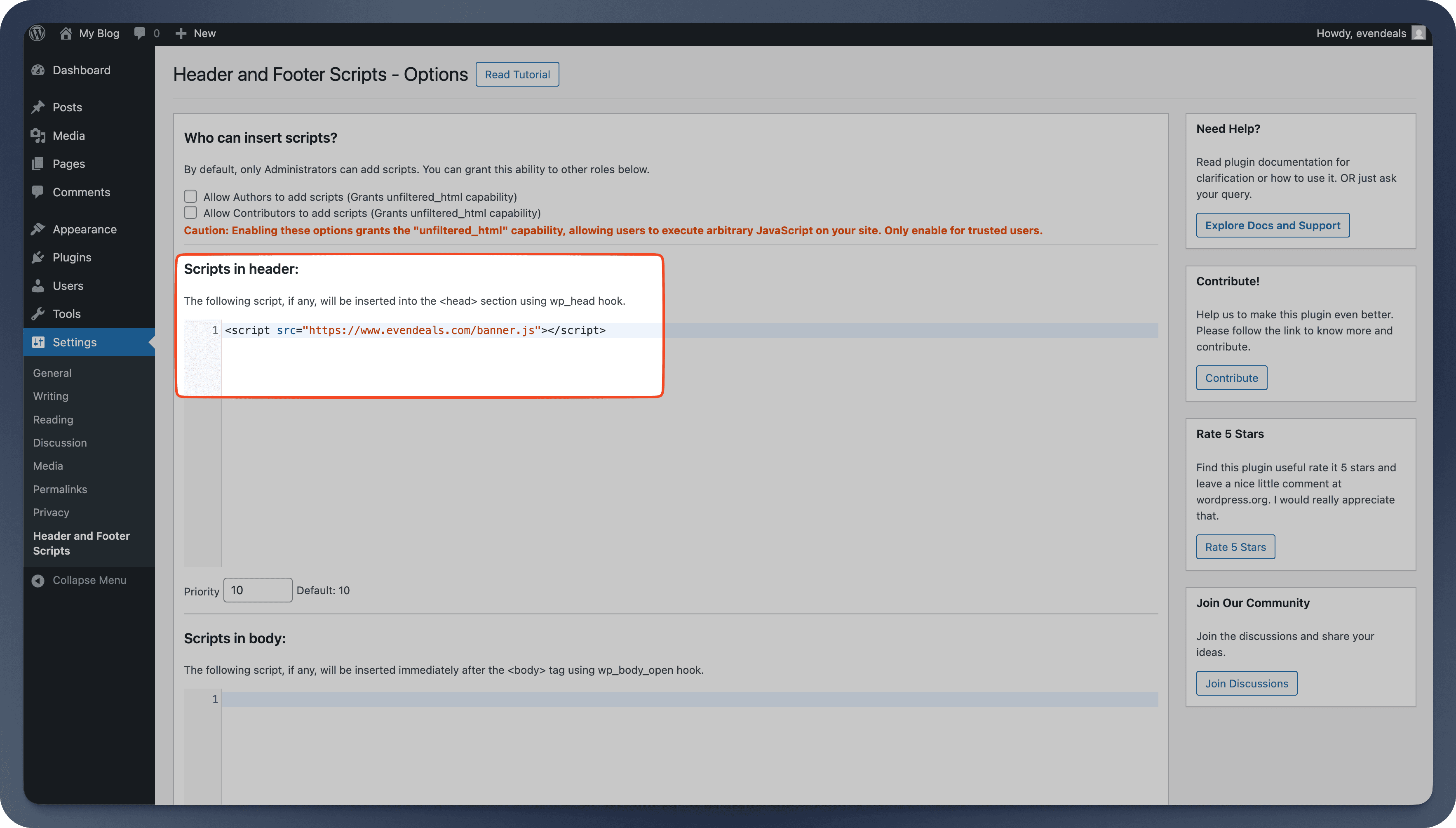
- Go to the Header tab and paste the Evendeals script into the Header Code field.
- Scroll down and click Save Changes.
Step 7: Done!
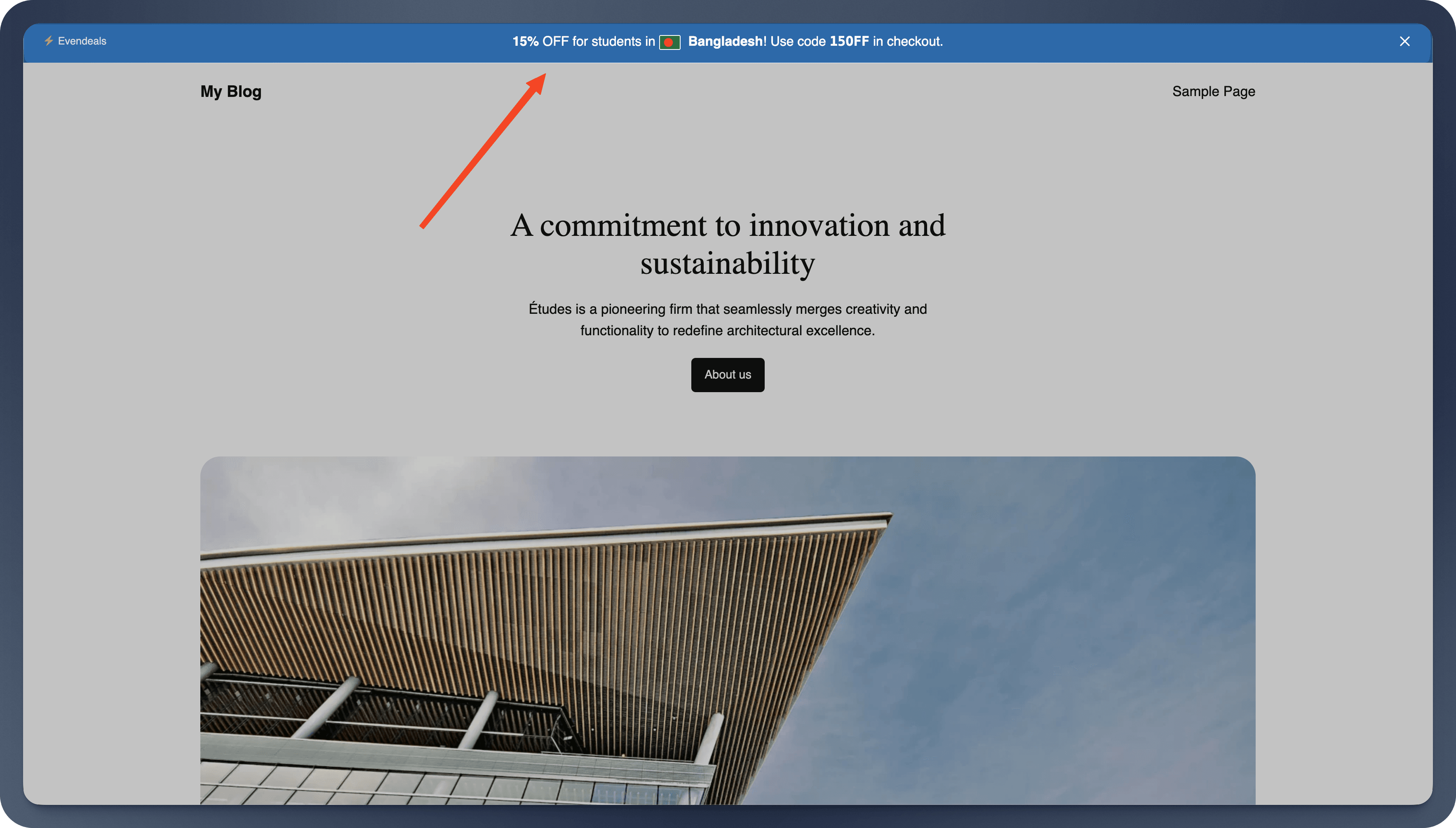
Your banner now shows to international visitors.
How It Works
When someone from India visits your WordPress pricing page:
- They see a banner such as: “Special pricing for visitors in India, use code
30OFFat checkout.” - They click the banner to learn more.
- The coupon code you configured is applied at checkout (or clearly shown for them to use).
- They pay a price that matches their local purchasing power.
Visitors from high-income countries simply see your standard price , no banner, no discount.
Beyond the Banner: Display Modes
The default banner works great out of the box, but Evendeals supports three display modes:
- Banner (default): The floating banner you just set up. Customize colors, text, position, and countdown timers from the dashboard. Coupon code is click-to-copy.
- Custom Display: Turn off the banner and use CSS classes (
ed-country,ed-discount-amount,ed-coupon-code,ed-country-flag) to show discount data inside your own design. No JavaScript needed. - API Mode: Call the Evendeals API directly from your frontend or backend for full control. Great for custom checkout flows and server-rendered pricing.
VPN Protection
People using VPNs to fake their location and get cheaper prices is a real problem. Evendeals (paid plans) automatically detects and blocks VPN users, so only people who actually live in those countries get the discounts.
What You Can Customize
- Which countries see discounts
- How much discount each country gets
- Banner colors and text
- Whether the banner has a countdown timer
- Which pages show the banner (you can also target patterns like
https://yoursite.com/pricing/*)
Pricing
Evendeals: Free plan available, paid plans start at $99 one-time (not monthly)
The free plan lets you test it with basic features. If you make just 2 extra sales at $49 from countries that weren't converting before, you've covered the cost of the paid plan.
FAQ
What is PPP pricing for WordPress?
WordPress PPP pricing means showing different prices or discount codes to visitors based on their country's purchasing power. Instead of one flat price for everyone, visitors from lower-income countries see a discounted price that reflects what that amount of money is actually worth in their local economy. You set the discount tiers once; Evendeals handles the geo-detection automatically.
Will WooCommerce coupons work with PPP discounts?
Yes. Evendeals has a native WooCommerce integration that auto-creates and syncs coupon codes for each country group directly in your store. For other plugins (Easy Digital Downloads, MemberPress, LearnDash, etc.), you create the coupon codes manually in those plugins and paste the code into Evendeals. The banner then shows the right code to the right visitor.
How do I know what discount to offer each country?
A practical starting point is to check how local income compares to your price. If your product costs $99 and the average monthly income in a country is $400, a 40-50% discount brings it closer to what someone in the US would consider a reasonable proportion of their income. The table under Step 4 gives you a sensible starting framework. You can always adjust discounts based on what actually converts.
Will this slow down my WordPress site?
No. The script is 5KB and loads asynchronously.
Can I show banners on specific WordPress pages only?
Yes, you can target specific URLs in the Evendeals Where to display tab. Add only the key pages (like pricing, sales pages, or landing pages) or use simple patterns if you want banners across whole sections.
What if I have multiple products or services?
You can create separate deals and banners for different pages, or reuse the same banner and coupon codes across multiple offers. Each deal can target its own set of URLs and discount rules.
Do I need to know code?
No. It's copy-paste installation. Once the script is in your header, you control everything from your Evendeals dashboard.
Next Steps
Also see: Thinkific, Teachable, Podia, EzyCourse, Framer.
- Create your WordPress-compatible coupon codes in your checkout or e-commerce plugin.
- Sign up at evendeals.com (free).
- Install the script in your WordPress header or code area.
- Watch your international conversion rates increase.
Most site owners see results within the first week. Visitors from India, Brazil, Southeast Asia, and Latin America are eager to buy from you, they just need pricing that makes sense for their local economy.
Try Evendeals Free